⚡ Windows Productivity Tool

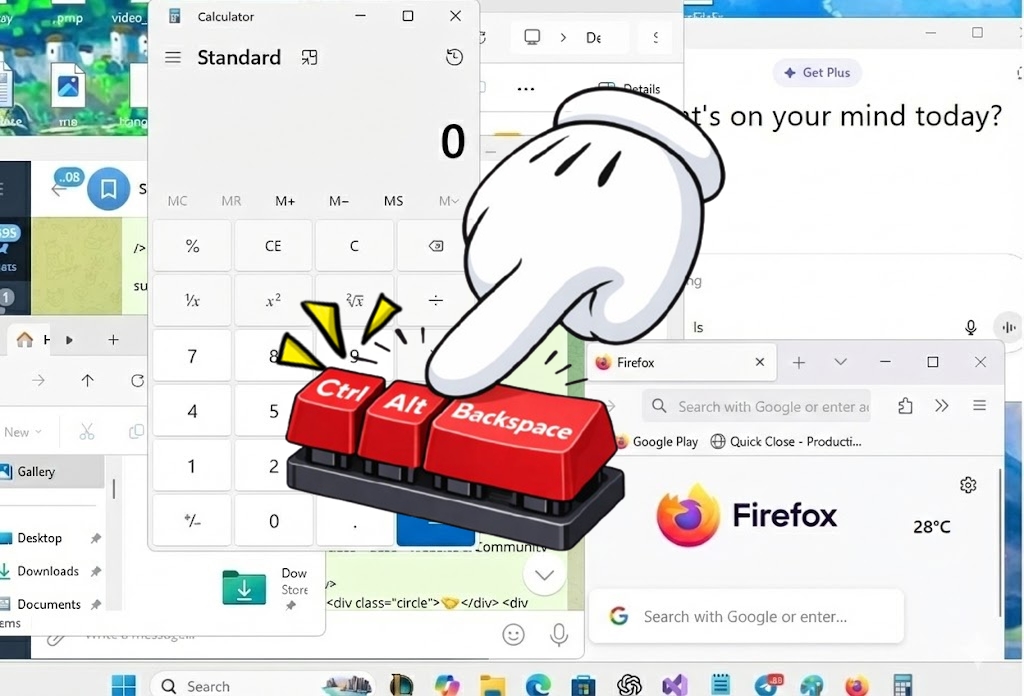
Close all Windows instantly One press. Everything disappears

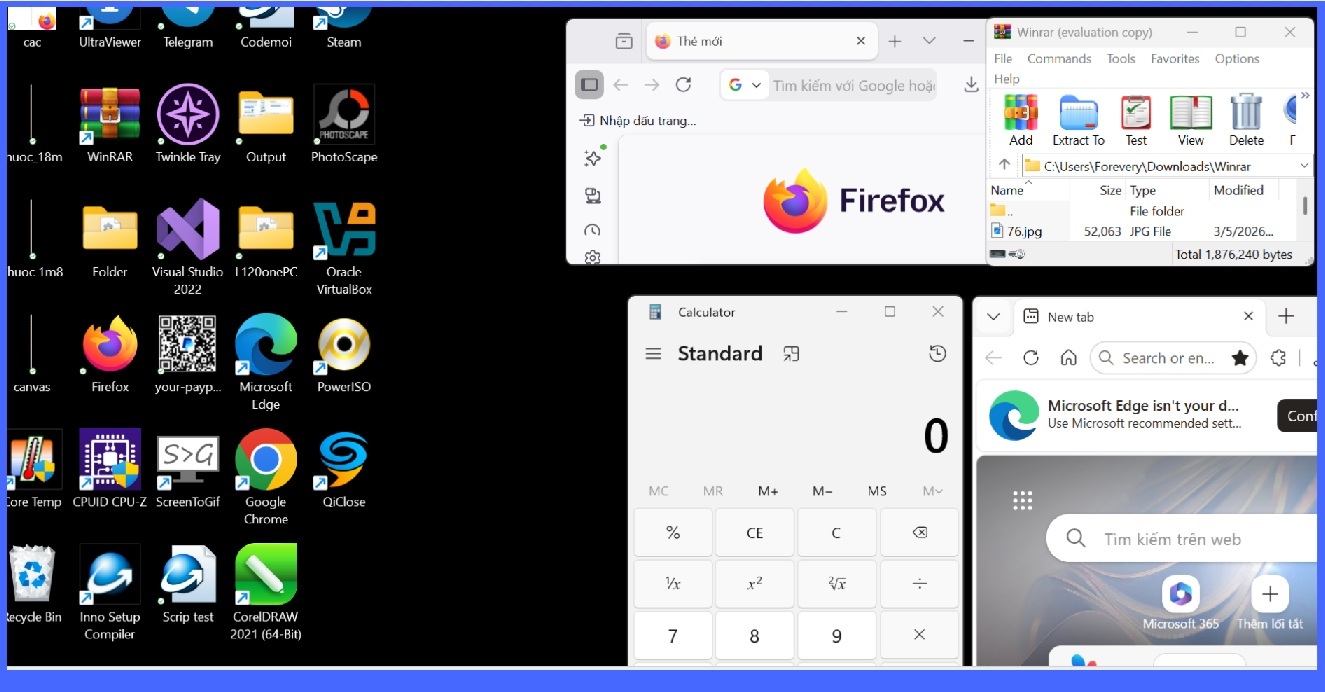
QiClose helps you close all open windows and running apps in just 1 second.

Step 1 Ctrl
+
Step 2 Alt
+
Step 3 Backspace
Done! All windows & apps
closed instantly.
⬇️ Download QiClose for Windows v1.0.1  |  Windows 10/11 (64-bit) ⓘ How to install?
Official
Launch
Downloads
Built over
2 years ★★★★★
💛 PayPal Donate PayPal QR
PayPal QR
paypal.me/lph194
💡 How to use?
⚠️ Caution!
⚠️ Important Warning 🚨 Back up your data before using QiClose.
📝 Avoid adding system / security apps to the list.
💻 Use only when PC is slow or RAM-overloaded.
👨‍💻 Best suited for developers, testers, and power users.

💰 Support me
QiClose App Screenshot

Powerful Features

QiClose not only quickly closes apps and windows, but can also stop related background processes and services. This helps free up RAM and CPU, making your system run smoother and reducing resource usage.

🛡️
Safe & Secure
No malware,no tracking
🍃
Lightweight
Only 3.5 MB
🔋
No Background Processes
Runs only when needed
📶
100% Free
No cost. No limits.

Quick Add & Remove

Type a program name and click + to add. Remove instantly with the Delete key.

Custom Shortcuts

Enable global hotkeys to close all apps quickly — Ctrl + Alt + Backspace or ALT + 1.

Auto Startup

Launch automatically with Windows — keep it always ready to help you.

💡 How to Use QiClose

QiClose Demo
▶ Click to play demo QiClose in action
1

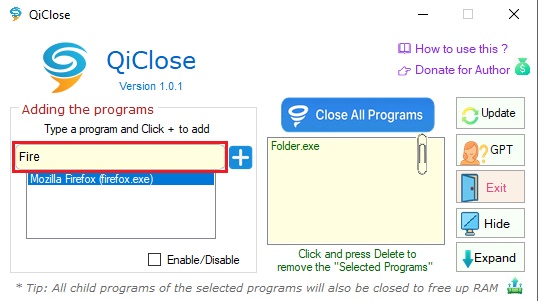
📝 Type the program name. When the suggestions box appears, click the one you want to fill in the input field.

Step 1
2

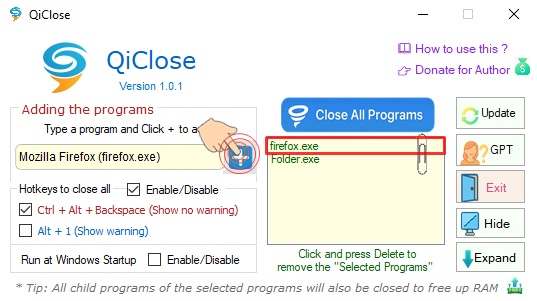
➕ Click the + button to add the program (e.g., Firefox) to the list on the right side.

Step 2
3

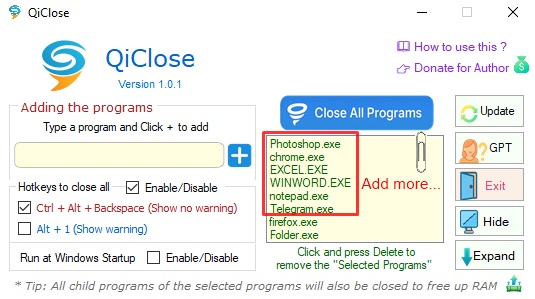
🔁 Repeat Steps 1 & 2 for other apps (e.g., Telegram, Word…), then click "Hide" to minimize to the system tray. tray icon

Step 3
4

▶️ Press the shortcut key Ctrl + Alt + Backspace or ALT + 1.

Step 4

Done! Your apps are remembered. From now on, just press Ctrl + Alt + Backspace — screen and memory instantly clean.

Done
🗺️ Full feature guide: ⏬ QiClose_User_Guide.pdf

💬 Use QiClose With ChatGPT

Can't find your software? Use ChatGPT to look up the exact .exe filename and add it to the list!

1

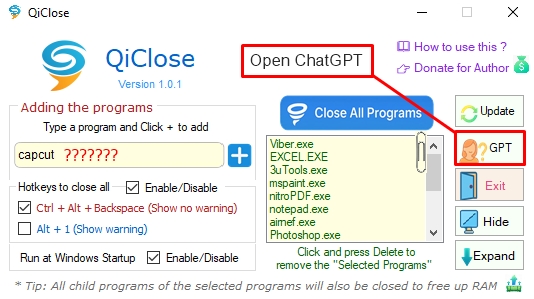
🔍 Click the "GPT" button inside QiClose.

Step 1
2

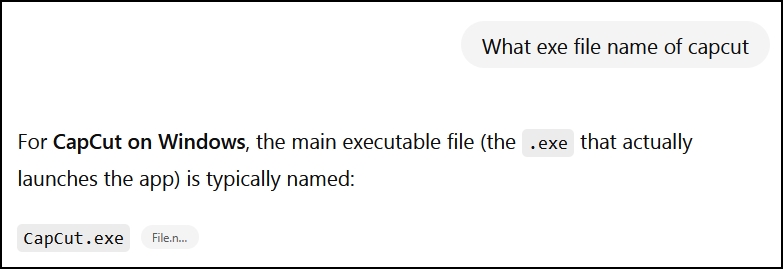
🔍 Type: "What exe file name of [your_application]?" — e.g., "What exe file name of CapCut PC" → answer: Capcut.exe

Step 2
3

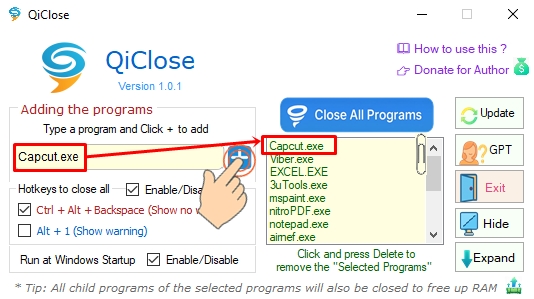
⚙️ Copy "Capcut.exe" into the input field and click the Add button. CapCut is now in the QiClose list.

Step 3
4

📌 Press Ctrl + Alt + Backspace then Enter — CapCut will close together with all other programs in your list.

Step 4

⚠️ Extremely Important Warning

🚨 Back up your data before using QiClose to close all your apps.

📝 Avoid adding system or security applications to the quick-close list. Closing such apps may cause errors or affect system stability.

💻 Use QiClose only when your computer is slow, frozen, or experiencing RAM overload that leads to system congestion.

🚫 Although very useful, QiClose cannot replace or outperform manually closing apps yourself.

👨‍💻 This software is especially suitable for tech professionals such as debuggers, testers, developers, or miners — those who truly understand system processes and application workflows.

LPH
LPH

LPH

Independent Developer · QiClose Creator

After the COVID-19 pandemic, my work and personal life faced many difficulties. But instead of giving up, I chose to move forward and wanted to create something truly meaningful for this life.

This application is not just a simple support tool. It gradually became a spiritual companion, helping me get through some of the darkest moments. Building QiClose over 2 years every line of code carries a story.